6 Steps to a Great Website-Haktuts

A Web Standards Checklist, How to make a proper website

A web standards checklist


The term web standards can mean different things to different people. For some, it is 'table-free sites', for others it is 'using valid code'. However, web standards are much broader than that. A site built to web standards should adhere to standards (HTML, XHTML, XML, CSS, XSLT, DOM, MathML, SVG etc) and pursue best practices (valid code, accessible code, semantically correct code, user-friendly URLs etc).

In other words, a site built to web standards should ideally be lean, clean, CSS-based, accessible, usable and search engine friendly.

About the checklist

This is not an uber-checklist. There are probably many items that could be added. More importantly, it should not be seen as a list of items that must be addressed on every site that you develop. It is simply a guide that can be used:

* to show the breadth of web standards
* as a handy tool for developers during the production phase of websites
* as an aid for developers who are interested in moving towards web standards

6 Steps to a Great Website

1.Quality of code


1. Does the site use a correct Doctype?
2. Does the site use a Character set?
3. Does the site use Valid (X)HTML?
4. Does the site use Valid CSS?
5. Does the site use any CSS hacks?
6. Does the site use unnecessary classes or ids?
7. Is the code well structured?
8. Does the site have any broken links?
9. How does the site perform in terms of speed/page size?
10. Does the site have JavaScript errors?

2. Degree of separation between content and presentation


1. Does the site use CSS for all presentation aspects (fonts, colour, padding, borders etc)?
2. Are all decorative images in the CSS, or do they appear in the (X)HTML?

3. Accessibility for users


1. Are "alt" attributes used for all descriptive images?
2. Does the site use relative units rather than absolute units for text size?
3. Do any aspects of the layout break if font size is increased?
4. Does the site use visible skip menus?
5. Does the site use accessible forms?
6. Does the site use accessible tables?
7. Is there sufficient colour brightness/contrasts?
8. Is colour alone used for critical information?
9. Is there delayed responsiveness for dropdown menus (for users with reduced motor skills)?
10. Are all links descriptive (for blind users)?

4. Accessibility for devices


1. Does the site work acceptably across modern and older browsers?
2. Is the content accessible with CSS switched off or not supported?
3. Is the content accessible with images switched off or not supported?
4. Does the site work in text browsers such as Lynx?
5. Does the site work well when printed?
6. Does the site work well in Hand Held devices?
7. Does the site include detailed metadata?
8. Does the site work well in a range of browser window sizes?

5. Basic Usability


1. Is there a clear visual hierarchy?
2. Are heading levels easy to distinguish?
3. Does the site have easy to understand navigation?
4. Does the site use consistent navigation?
5. Are links underlined?
6. Does the site use consistent and appropriate language?
7. Do you have a sitemap page and contact page? Are they easy to find?
8. For large sites, is there a search tool?
9. Is there a link to the home page on every page in the site?
10. Are visited links clearly defined with a unique colour?

6. Site management


1. Does the site have a meaningful and helpful 404 error page that works from any depth in the site?
2. Does the site use friendly URLs?
3. Do your URLs work without "www"?
4. Does the site have a favicon?

25 Ways to improve the performance of windows 7|8|10

Defragging the disk won't do much to improve Windows XP performance, here are 23 suggestions that will. Each can enhance the performance and reliability of your customers' PCs. Best of all, most of them will cost you nothing.

25 Ways to improve the performance of windows


1.) To decrease a system's boot time and increase system performance, use the money you save by not buying defragmentation software -- the built-in Windows defragmenter works just fine -- and instead equip the computer with an Ultra-133 or Serial ATA hard drive with 8-MB cache buffer.

2.) If a PC has less than 512 MB of RAM, add more memory. This is a relatively inexpensive and easy upgrade that can dramatically improve system performance.

3.) Ensure that Windows XP is utilizing the NTFS file system. If you're not sure, here's how to check: First, double-click the My Computer icon, right-click on the C: Drive, then select Properties. Next, examine the File System type; if it says FAT32, then back-up any important data. Next, click Start, click Run, type CMD, and then click OK. At the prompt, type CONVERT C: /FS:NTFS and press the Enter key. This process may take a while; it's important that the computer be uninterrupted and virus-free. The file system used by the bootable drive will be either FAT32 or NTFS. I highly recommend NTFS for its superior security, reliability, and efficiency with larger disk drives.

4.) Disable file indexing. The indexing service extracts information from documents and other files on the hard drive and creates a "searchable keyword index." As you can imagine, this process can be quite taxing on any system.

The idea is that the user can search for a word, phrase, or property inside a document, should they have hundreds or thousands of documents and not know the file name of the document they want. Windows XP's built-in search functionality can still perform these kinds of searches without the Indexing service. It just takes longer. The OS has to open each file at the time of the request to help find what the user is looking for.

Most people never need this feature of search. Those who do are typically in a large corporate environment where thousands of documents are located on at least one server. But if you're a typical system builder, most of your clients are small and medium businesses. And if your clients have no need for this search feature, I recommend disabling it.

Here's how: First, double-click the My Computer icon. Next, right-click on the C: Drive, then select Properties. Uncheck "Allow Indexing Service to index this disk for fast file searching." Next, apply changes to "C: subfolders and files," and click OK. If a warning or error message appears (such as "Access is denied"), click the Ignore All button.

5.) Update the PC's video and motherboard chipset drivers. Also, update and configure the BIOS. For more information on how to configure your BIOS properly, see this article on my site.

6.) Empty the Windows Prefetch folder every three months or so. Windows XP can "prefetch" portions of data and applications that are used frequently. This makes processes appear to load faster when called upon by the user. That's fine. But over time, the prefetch folder may become overloaded with references to files and applications no longer in use. When that happens, Windows XP is wasting time, and slowing system performance, by pre-loading them. Nothing critical is in this folder, and the entire contents are safe to delete.

7.) Once a month, run a disk cleanup. Here's how: Double-click the My Computer icon. Then right-click on the C: drive and select Properties. Click the Disk Cleanup button -- it's just to the right of the Capacity pie graph -- and delete all temporary files.

8.) In your Device Manager, double-click on the IDE ATA/ATAPI Controllers device, and ensure that DMA is enabled for each drive you have connected to the Primary and Secondary controller. Do this by double-clicking on Primary IDE Channel. Then click the Advanced Settings tab. Ensure the Transfer Mode is set to "DMA if available" for both Device 0 and Device 1. Then repeat this process with the Secondary IDE Channel.

9.) Upgrade the cabling. As hard-drive technology improves, the cabling requirements to achieve these performance boosts have become more stringent. Be sure to use 80-wire Ultra-133 cables on all of your IDE devices with the connectors properly assigned to the matching Master/Slave/Motherboard sockets. A single device must be at the end of the cable; connecting a single drive to the middle connector on a ribbon cable will cause signaling problems. With Ultra DMA hard drives, these signaling problems will prevent the drive from performing at its maximum potential. Also, because these cables inherently support "cable select," the location of each drive on the cable is important. For these reasons, the cable is designed so drive positioning is explicitly clear.

10.) Remove all spyware from the computer. Use free programs such as AdAware by Lavasoft or SpyBot Search & Destroy. Once these programs are installed, be sure to check for and download any updates before starting your search. Anything either program finds can be safely removed. Any free software that requires spyware to run will no longer function once the spyware portion has been removed; if your customer really wants the program even though it contains spyware, simply reinstall it. For more information on removing Spyware visit this Web Pro News page.

11.) Remove any unnecessary programs and/or items from Windows Startup routine using the MSCONFIG utility. Here's how: First, click Start, click Run, type MSCONFIG, and click OK. Click the StartUp tab, then uncheck any items you don't want to start when Windows starts. Unsure what some items are? Visit the WinTasks Process Library. It contains known system processes, applications, as well as spyware references and explanations. Or quickly identify them by searching for the filenames using Google or another Web search engine.

12.) Remove any unnecessary or unused programs from the Add/Remove Programs section of the Control Panel.

13.) Turn off any and all unnecessary animations, and disable active desktop. In fact, for optimal performance, turn off all animations. Windows XP offers many different settings in this area. Here's how to do it: First click on the System icon in the Control Panel. Next, click on the Advanced tab. Select the Settings button located under Performance. Feel free to play around with the options offered here, as nothing you can change will alter the reliability of the computer -- only its responsiveness.

14.) If your customer is an advanced user who is comfortable editing their registry, try some of the performance registry tweaks offered at Tweak XP.

15.) Visit Microsoft's Windows update site regularly, and download all updates labeled Critical. Download any optional updates at your discretion.

16.) Update the customer's anti-virus software on a weekly, even daily, basis. Make sure they have only one anti-virus software package installed. Mixing anti-virus software is a sure way to spell disaster for performance and reliability.

17.) Make sure the customer has fewer than 500 type fonts installed on their computer. The more fonts they have, the slower the system will become. While Windows XP handles fonts much more efficiently than did the previous versions of Windows, too many fonts -- that is, anything over 500 -- will noticeably tax the system.

18.) Do not partition the hard drive. Windows XP's NTFS file system runs more efficiently on one large partition. The data is no safer on a separate partition, and a reformat is never necessary to reinstall an operating system. The same excuses people offer for using partitions apply to using a folder instead. For example, instead of putting all your data on the D: drive, put it in a folder called "D drive." You'll achieve the same organizational benefits that a separate partition offers, but without the degradation in system performance. Also, your free space won't be limited by the size of the partition; instead, it will be limited by the size of the entire hard drive. This means you won't need to resize any partitions, ever. That task can be time-consuming and also can result in lost data.

19.) Check the system's RAM to ensure it is operating properly. I recommend using a free program called MemTest86. The download will make a bootable CD or diskette (your choice), which will run 10 extensive tests on the PC's memory automatically after you boot to the disk you created. Allow all tests to run until at least three passes of the 10 tests are completed. If the program encounters any errors, turn off and unplug the computer, remove a stick of memory (assuming you have more than one), and run the test again. Remember, bad memory cannot be repaired, but only replaced.

20.) If the PC has a CD or DVD recorder, check the drive manufacturer's Web site for updated firmware. In some cases you'll be able to upgrade the recorder to a faster speed. Best of all, it's free.

21.) Disable unnecessary services. Windows XP loads a lot of services that your customer most likely does not need. To determine which services you can disable for your client, visit the Black Viper site for Windows XP configurations.

22.) If you're sick of a single Windows Explorer window crashing and then taking the rest of your OS down with it, then follow this tip: open My Computer, click on Tools, then Folder Options. Now click on the View tab. Scroll down to "Launch folder windows in a separate process," and enable this option. You'll have to reboot your machine for this option to take effect.

23.) At least once a year, open the computer's cases and blow out all the dust and debris. While you're in there, check that all the fans are turning properly. Also inspect the motherboard capacitors for bulging or leaks. For more information on this leaking-capacitor phenomena, you can read numerous articles on my site.


Following any of these suggestions should result in noticeable improvements to the performance and reliability of your customers' computers. If you still want to defrag a disk, remember that the main benefit will be to make your data more retrievable in the event of a crashed drive.

Future world of Virtual Currency – called as BITCOIN

Imagine the world with full of technologies of not having no banks, no ATM’s, no in person transactions. That is how the world is going to be in couple of decades.
Welcome to the world of “Virtual Currencies” where you do not need banks, no ATM cards, and no fees to third party vendors. This virtual currency is called as “Bitcoin”. The currency is not physically present, no banks and everything is run through a secured algorithm where the transactions will happens peer to peer without any middle vendor. These transactions are highly encrypted and it takes years to break this algorithm.

Bitcoin
Now days I have seen these virtual currencies are being accepted in most of the online payments/shopping like: Paypal, ebay, Overstock.com, Namecheap.com, Zynga etc…
It is not to my surprise that even the car companies are accepting Bitcoins and delivered the car for bitcoins payment like TESLA.
There is a risk for public to purchase these kinds of virtual currencies and keep it for a while. Because, it is kind of gambling that person can play with his extra money if you seriously want to take risk at this investment.
In Nov 2011, the conversion price of 1 bitcoin was USD $3, then the conversion rate surge more than USD $1000 for 1 bitcoin due to different online retailers started accepting this virtual currencies to cut down the middle vendors.

Dell is accepting bitcoin
What are bitcoins?
Bitcoins are a type of decentralized virtual currency, meaning they are not issued or backed by the United States or any other government. They are also unregulated and uninsured, which means that consumers and businesses alike have limited recourse if they have a problem. Unlike the dollar, which is legal tender, no one is required to accept bitcoins as a form of payment.

While not tangible currency, bitcoins are bought by transferring real money through an exchange or to an individual, and are stored on computers or held by the purchaser or a third party in a so-called virtual wallet. Once the bitcoins are in your virtual wallet, you can use them to purchase items from any merchant willing to accept them or sell them to someone willing to buy them.

How are bitcoins made?
Bitcoins are created through a sophisticated computer algorithm that requires extensive computer power. Creating new bitcoins is called “mining” and is something that is not available to the average consumer.

Basic Facts on Bitcoin:
It’s a high-risk currency because of the volatility in its price.
It’s not backed by any central banks worldwide and has no tangible value.
It’s an experimental concept.
It’s unregulated and does not provide protection for consumers.
Consumer disclosure rules and regulations are limited or nonexistent.
It is not insured or backed by any government or regulatory structure.
No company is required to accept bitcoins as a form of payment.


Primo PDF – Best offline printer

I have been using this Primo PDF for years and it is working well for me when I want to take any offline printouts. This is mainly useful when you want to take a print out of the online form, then you notice that real printer is not available nearby, and then you can print the documents to Primo PDF, where it will convert all your documents to PDF and save it ready for you in the local computer. So that you can take prints outs of this document actually when you connect to the real printer when it is available.

Advantages of using Primo PDF:
  • Print the documents in PDF format.
  • Fill any online forms, and then select your default printer as “Primo PDF” and document will save as PDF.
  • You purchase anything, but do not have printer to print the confirmation, and then select your default printer as “Primo PDF” and document will save as PDF.
  • Email this PDF document to anyone you wish that they could take the printout for you.
  • You do not want to take screen shots, just take a printout like a real printer.
  • Print multiple images into one PDF

Download the software from here: http://www.primopdf.com/

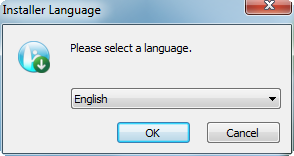
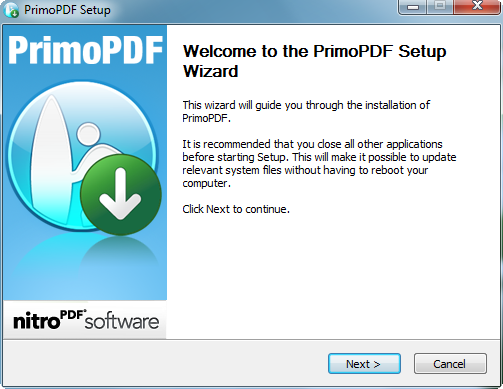
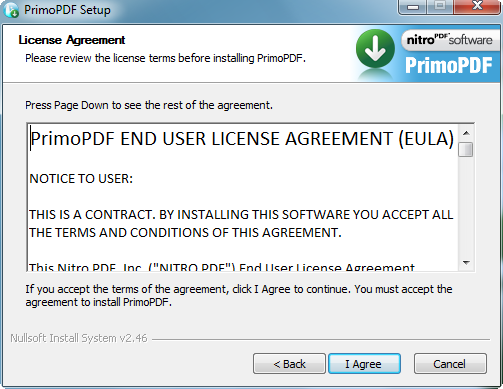
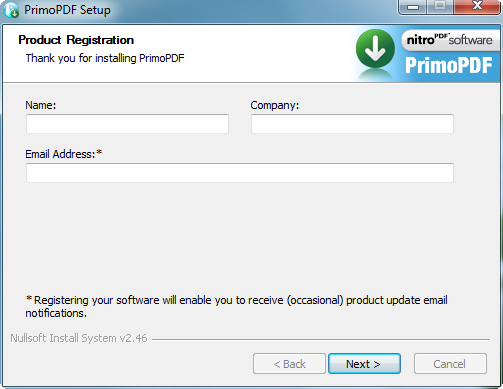
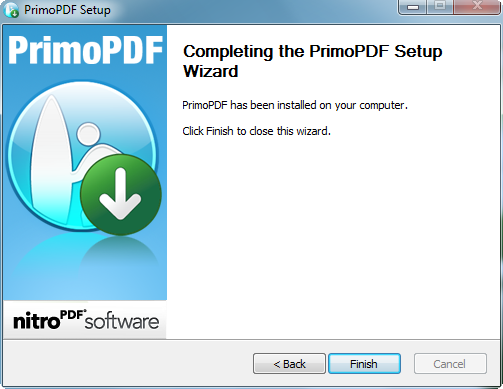
Once you download the software, run the EXE file and you will find the below screen one after the other. The installation procedure is self-explanatory:

Step1

Step 2

Step 3

Step 4

Step 5

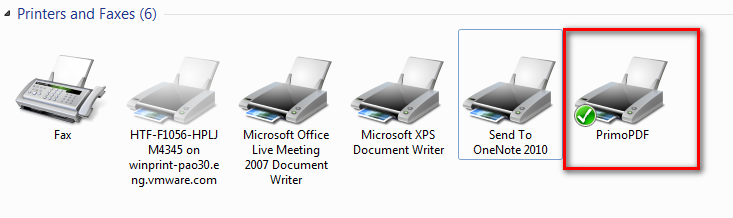
Once the installation is completed, then go to you Printers section in your computer, where you can find a "PrimoPDF" as your default printer.

Default Printer
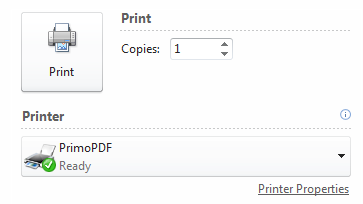
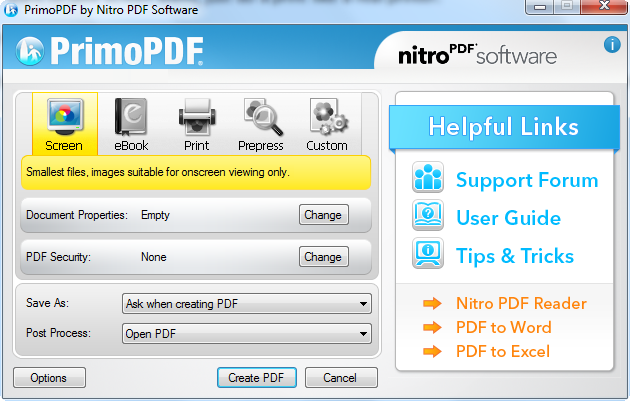
 In case if you want to print any document offline if you real printer is not available, then select "PrimoPDF", then it will print the document and save it in PDF format for you in the specified path. So that you can refer that PDF at a later point of time to take printout.

Print Options

Save the print document as PDF

Screen Capture Utility


FastStone Capture is a more powerful tool and interactive Screen capture utility. Newer versions of FastStone has been made premium but version 5.3 is a free version and can be used by any single user.

Various features of FastStone Capture are:
  • Capture Active Window
  • Capture Window/Object
  • Capture Rectangular area
  • Capture Full Screen
  • Capture Scrolling screen
  • Capture Freehand region
  • Edit the Captured image
  • Text annotation in the captured image
  • Highlight the specified area in the captured image
  • Cropping
  • Re-sizing
  • Screen Magnifier
  • Printing
  • Emailing


Below is the snapshot of the FastStone Capture, if you need, kindly download here
In the download page, Click on File -> Download
FastStone 5.3


Smart Watch or Smart Phone?

Samsung gear is the one kind of technology that is launched as a wearable gadget like watch. There are different variations launched already like Gear 2 neo, Gear 2, Galaxy Gear and Gear fit. Each gear as it's own purpose. Gear 2 neo does not have camera, but it can connect to your smartphones bluetooth and help you to take the calls, message or listen to music through your smart gear. Also it has a feature to record your hear rate all the time as there is a device backside of the watch which will take care of this.


Samsung Gear 2 (With Camera)
Samsung Gear 2 Neo (No Camera)

How it works?

This watch is like other smart phones, swipe to your left/right to navigate between the apps and it has one home button. In case if you want to go to the previous screen, then swipe from top to bottom to go back to your previous screen.

This gadget has various other features that can be used without smartphones, to keep track of your heart rate, stop watch, listen to music, TV remote control, Camera, Voice memos etc...

Watch more about this in these videos:


Private Browsing/Ad Block

Browsers are the only way that can connect us to the external world. There are different types of browsers out there like Internet Explorer (IE), Firefox, Google Chrome, Safari, Opera etc… What browsers are doing while you are visiting web pages? Does it give the smooth experience? If you set your browser to the right settings, it will enrich your browser experience while you visit the web pages.

Always use the Private browsing mode (In particular when using public computers), which will ensure that your existing cookies are not used by any websites that you are visiting. By doing this, the website that you are visiting will not be able to track you and show the customized web pages. This is advantage if you do not want to be tracked with existing cookies, but downside is, if there are any ads shown in the page, then it will be irrelevant to your browsing history as your cookies are not being read.


Private Browsing
Private Browsing

There are multiple agencies (like Bluekai, quantcast, etc…) in the market which will be used in most of the websites to read the demographics for the user and understand them, so that it can track down you with relevant information when you are visiting web pages.

What this means to you?  Those agencies will be tracking all your browsing activities like cookies, to collect all the demographic information to read the person’s browsing pattern and activity, which could be used to sell your data for the online advertisers.

What you can do to escape from all these tracking? Always use the private browsing mode which will be safe browsing and does not remember any of your history, cookies and cache what you do after you close your browser.

Also there are different types of free plug-ins that can be installed in your browser which will detect and disable the advertisements displayed in your page. Example:
How to turn on private browsing mode in different browsers that will not store any of your history, cookies and cache.
Internet Explorer – Ctrl + Shift + P
Firefox - Ctrl + Shift + P 
Chrome – Ctrl + Shift + N