Linux command from basic to advance for beginners

Linux command from basic to advance for beginners


a
apropos- Search Help manual pages (man -k)
apt-get- Search for and install software packages (Debian/Ubuntu)
aptitude- Search for and install software packages (Debian/Ubuntu)
aspell- Spell Checker
awk -Find and Replace text, database sort/validate/index
b
basename- Strip directory and suffix from filenames
bash- GNU Bourne-Again SHell
bc -Arbitrary precision calculator language
bg- Send to background
break- Exit from a loop •
builtin- Run a shell builtin
bzip2- Compress or decompress named file(s)
c
cal- Display a calendar
case- Conditionally perform a command
cat- Concatenate and print (display) the content of files
cd- Change Directory
cfdisk -Partition table manipulator for Linux
chgrp -Change group ownership
chmod- Change access permissions
chown- Change file owner and group
chroot- Run a command with a different root directory
chkconfig- System services (runlevel)
cksum- Print CRC checksum and byte counts
clear- Clear terminal screen
cmp- Compare two files
comm- Compare two sorted files line by line
command- Run a command - ignoring shell functions •
continue- Resume the next iteration of a loop •
cp -Copy one or more files to another location
cron- Daemon to execute scheduled commands
crontab- Schedule a command to run at a later time
csplit- Split a file into context-determined pieces
cut -Divide a file into several parts
d
date- Display or change the date & time
dc- Desk Calculator
dd- Convert and copy a file, write disk headers, boot records
ddrescue- Data recovery tool
declare- Declare variables and give them attributes •
df -Display free disk space
diff -Display the differences between two files
diff3- Show differences among three files
dig- DNS lookup
dir- Briefly list directory contents
dircolors- Colour setup for `ls'
dirname- Convert a full pathname to just a path
dirs- Display list of remembered directories
dmesg- Print kernel & driver messages
du- Estimate file space usage
e
echo -Display message on screen •
egrep -Search file(s) for lines that match an extended expression
eject- Eject removable media
enable -Enable and disable builtin shell commands •
env- Environment variables
ethtool- Ethernet card settings
eval- Evaluate several commands/arguments
exec- Execute a command
exit- Exit the shell
expect -Automate arbitrary applications accessed over a terminal
expand- Convert tabs to spaces
export -Set an environment variable
expr- Evaluate expressions
f
false- Do nothing, unsuccessfully
fdformat- Low-level format a floppy disk
fdisk- Partition table manipulator for Linux
fg- Send job to foreground
fgrep- Search file(s) for lines that match a fixed string
file- Determine file type
find- Search for files that meet a desired criteria
fmt- Reformat paragraph text
fold- Wrap text to fit a specified width.
for- Expand words, and execute commands
format- Format disks or tapes
free- Display memory usage
fsck File system consistency check and repair
ftp File Transfer Protocol
function Define Function Macros
fuser Identify/kill the process that is accessing a file
g
gawk- Find and Replace text within file(s)
getopts -Parse positional parameters
grep- Search file(s) for lines that match a given pattern
groupadd- Add a user security group
groupdel -Delete a group
groupmod- Modify a group
groups- Print group names a user is in
gzip- Compress or decompress named file(s)
h
hash- Remember the full pathname of a name argument
head- Output the first part of file(s)
help- Display help for a built-in command •
history -Command History
hostname- Print or set system name
i
iconv- Convert the character set of a file
id- Print user and group id's
if- Conditionally perform a command
ifconfig- Configure a network interface
ifdown- Stop a network interface
ifup- Start a network interface up
import- Capture an X server screen and save the image to file
install- Copy files and set attributes
j
jobs- List active jobs •
join- Join lines on a common field
k
kill- Stop a process from running
killall- Kill processes by name
l
less- Display output one screen at a time
let- Perform arithmetic on shell variables •
ln -Create a symbolic link to a file
local- Create variables •
locate- Find files
logname- Print current login name
logout -Exit a login shell •
look- Display lines beginning with a given string
lpc- Line printer control program
lpr- Off line print
lprint- Print a file
lprintd- Abort a print job
lprintq- List the print queue
lprm- Remove jobs from the print queue
ls- List information about file(s)
lsof- List open files
m
make Recompile a group of programs
man Help manual
mkdir Create new folder(s)
mkfifo- Make FIFOs (named pipes)
mkisofs- Create an hybrid ISO9660/JOLIET/HFS filesystem
mknod- Make block or character special files
more- Display output one screen at a time
mount -Mount a file system
mtools- Manipulate MS-DOS files
mt-r Network diagnostics (traceroute/ping)
mv- Move or rename files or directories
mmv- Mass Move and rename (files)
n
netstat- Networking information
nice- Set the priority of a command or job
nl- Number lines and write files
nohup- Run a command immune to hangups
notify-send Send desktop notifications
nslookup- Query Internet name servers interactively
o
open- Open a file in its default application
op- Operator access
p
passwd- Modify a user password
paste- Merge lines of files
pathchk- Check file name portability
ping- Test a network connection
pkill -Stop processes from running
popd- Restore the previous value of the current directory
pr -Prepare files for printing
printcap- Printer capability database
printenv -Print environment variables
printf -Format and print data •
ps- Process status
pushd -Save and then change the current directory
pwd- Print Working Directory
q
quota- Display disk usage and limits
quotacheck- Scan a file system for disk usage
quotactl- Set disk quotas
r
ram ram disk device
rcp -Copy files between two machines
read- Read a line from standard input •
readarray- Read from stdin into an array variable •
readonly -Mark variables/functions as readonly
reboot- Reboot the system
rename- Rename files
renice- Alter priority of running processes
remsync- Synchronize remote files via email
return- Exit a shell function
rev -Reverse lines of a file
rm- Remove files
rmdir- Remove folder(s)
rsync- Remote file copy (Synchronize file trees)
s
screen -Multiplex terminal, run remote shells via ssh
scp- Secure copy (remote file copy)
sdiff- Merge two files interactively
sed- Stream Editor
select- Accept keyboard input
seq- Print numeric sequences
set- Manipulate shell variables and functions
sftp -Secure File Transfer Program
shift- Shift positional parameters
shopt- Shell Options
shutdown- Shutdown or restart linux
sleep- Delay for a specified time
slocate- Find files
sort- Sort text files
source- Run commands from a file `.'
split- Split a file into fixed-size pieces
ssh- Secure Shell client (remote login program)
strace -Trace system calls and signals
su- Substitute user identity
sudo- Execute a command as another user
sum- Print a checksum for a file
suspend- Suspend execution of this shell •
symlink- Make a new name for a file
sync- Synchronize data on disk with memory
t
tail- Output the last part of file
tar- Tape ARchiver
tee- Redirect output to multiple files
test- Evaluate a conditional expression
time- Measure Program running time
times- User and system times
touch- Change file timestamps
top- List processes running on the system
traceroute- Trace Route to Host
trap -Run a command when a signal is set(bourne)
tr -Translate, squeeze, and/or delete characters
true- Do nothing, successfully
tsort- Topological sort
tty -Print filename of terminal on stdin
type- Describe a command •
u
ulimit- Limit user resources •
umask- Users file creation mask
umount -Unmount a device
unalias -Remove an alias •
uname -Print system information
unexpand- Convert spaces to tabs
uniq Uniquify- files
units -Convert units from one scale to another
unset- Remove variable or function names
unshar -Unpack shell archive scripts
until Execute commands (until error)
uptime -Show uptime
useradd- Create new user account
userdel- Delete a user account
usermod- Modify user account
users- List users currently logged in
uuencode -Encode a binary file
uudecode- Decode a file created by uuencode
v
v- Verbosely list directory contents (`ls -l -b')
vdir- Verbosely list directory contents (`ls -l -b')
vi -Text Editor
vmstat- Report virtual memory statistics
w
wait Wait for a process to complete •
watch- Execute/display a program periodically
wc -Print byte, word, and line counts
whereis- Search the user's $path, man pages and source files for a program
which- Search the user's $path for a program file
while- Execute commands
who- Print all usernames currently logged in
whoami- Print the current user id and name (`id -un')
wget -Retrieve web pages or files via HTTP, HTTPS or FTP
write -Send a message to another user
x
xargs- Execute utility, passing constructed argument list(s)
xdg-open- Open a file or URL in the user's preferred application.

How to setup the FTP

Well, since many of us have always wondered this, here it is. Long and drawn out. Also, before attempting this, realize one thing; You will have to give up your time, effort, bandwidth, and security to have a quality ftp server.

That being said, here it goes. First of all, find out if your IP (Internet Protocol) is static (not changing) or dynamic (changes everytime you log on). To do this, first consider the fact if you have a dial up modem. If you do, chances are about 999 999 out of 1 000 000 that your IP is dynamic. To make it static, just go to a place like h*tp://www.myftp.org/ to register for a static ip address.

You'll then need to get your IP. This can be done by doing this:
Going to Start -> Run -> winipcfg or www.ask.com and asking 'What is my IP?'

After doing so, you'll need to download an FTP server client. Personally, I'd recommend G6 FTP Server, Serv-U FTPor Bullitproof v2.15 all three of which are extremely reliable, and the norm of the ftp world.
You can download them on this site: h*tp://www.liaokai.com/softw_en/d_index.htm

First, you'll have to set up your ftp. For this guide, I will use step-by-step instructions for G6. First, you'll have to go into 'Setup -> General'. From here, type in your port # (default is 21). I recommend something unique, or something a bit larger (ex: 3069). If you want to, check the number of max users (this sets the amount of simultaneous maximum users on your server at once performing actions - The more on at once, the slower the connection and vice versa).

The below options are then chooseable:
-Launch with windows
-Activate FTP Server on Start-up
-Put into tray on startup
-Allow multiple instances
-Show "Loading..." status at startup
-Scan drive(s) at startup
-Confirm exit

You can do what you want with these, as they are pretty self explanatory. The scan drive feature is nice, as is the 2nd and the last option. From here, click the 'options' text on the left column.

To protect your server, you should check 'login check' and 'password check', 'Show relative path (a must!)', and any other options you feel you'll need. After doing so, click the 'advanced' text in the left column. You should then leave the buffer size on the default (unless of course you know what you're doing ), and then allow the type of ftp you want.

Uploading and downloading is usually good, but it's up to you if you want to allow uploads and/or downloads. For the server priority, that will determine how much conventional memory will be used and how much 'effort' will go into making your server run smoothly.

Anti-hammering is also good, as it prevents people from slowing down your speed. From here, click 'Log Options' from the left column. If you would like to see and record every single command and clutter up your screen, leave the defaults.

But, if you would like to see what is going on with the lowest possible space taken, click 'Screen' in the top column. You should then check off 'Log successful logins', and all of the options in the client directry, except 'Log directory changes'. After doing so, click 'Ok' in the bottom left corner.

You will then have to go into 'Setup -> User Accounts' (or ctrl & u). From here, you should click on the right most column, and right click. Choose 'Add', and choose the username(s) you would like people to have access to.

After giving a name (ex: themoonlanding), you will have to give them a set password in the bottom column (ex: wasfaked). For the 'Home IP' directory, (if you registered with a static server, check 'All IP Homes'. If your IP is static by default, choose your IP from the list. You will then have to right click in the very center column, and choose 'Add'.

From here, you will have to set the directory you want the people to have access to. After choosing the directory, I suggest you choose the options 'Read', 'List', and 'Subdirs', unless of course you know what you're doing . After doing so, make an 'upload' folder in the directory, and choose to 'add' this folder seperately to the center column. Choose 'write', 'append', 'make', 'list', and 'subdirs'. This will allow them to upload only to specific folders (your upload folder).

Now click on 'Miscellaneous' from the left column. Choose 'enable account', your time-out (how long it takes for people to remain idle before you automatically kick them off), the maximum number of users for this name, the maximum number of connections allowed simultaneously for one ip address, show relative path (a must!), and any other things at the bottom you'd like to have. Now click 'Ok'.
**Requested**


From this main menu, click the little boxing glove icon in the top corner, and right click and unchoose the hit-o-meter for both uploads and downloads (with this you can monitor IP activity). Now click the lightning bolt, and your server is now up and running.

Post your ftp info, like this:

213.10.93.141 (or something else, such as: 'f*p://example.getmyip.com')

User: *** (The username of the client)

Pass: *** (The password)

Port: *** (The port number you chose)

So make a FTP and join the FTP section


Listing The Contents Of A Ftp:


Listing the content of a FTP is very simple.
You will need FTP Content Maker, which can be downloaded from here:
ht*p://www.etplanet.com/download/application/FTP%20Content%20Maker%201.02.zip

1. Put in the IP of the server. Do not put "ftp://" or a "/" because it will not work if you do so.
2. Put in the port. If the port is the default number, 21, you do not have to enter it.
3. Put in the username and password in the appropriate fields. If the login is anonymous, you do not have to enter it.
4. If you want to list a specific directory of the FTP, place it in the directory field. Otherwise, do not enter anything in the directory field.
5. Click "Take the List!"
6. After the list has been taken, click the UBB output tab, and copy and paste to wherever you want it.


If FTP Content Maker is not working, it is probably because the server does not utilize Serv-U Software.

If you get this error message:
StatusCode = 550
LastResponse was : 'Unable to open local file test-ftp'
Error = 550 (Unable to open local file test-ftp)
Error = Unable to open local file test-ftp = 550
Close and restart FTP Content Maker, then try again.

Error messages:


110 Restart marker reply. In this case, the text is exact and not left to the particular implementation; it must read: MARK yyyy = mmmm Where yyyy is User-process data stream marker, and mmmm server's equivalent marker (note the spaces between markers and "=").
120 Service ready in nnn minutes.
125 Data connection already open; transfer starting.
150 File status okay; about to open data connection.
200 Command okay.
202 Command not implemented, superfluous at this site.
211 System status, or system help reply.
212 Directory status.
213 File status.
214 Help message. On how to use the server or the meaning of a particular non-standard command. This reply is useful only to the human user.
215 NAME system type. Where NAME is an official system name from the list in the Assigned Numbers document.
220 Service ready for new user.
221 Service closing control connection. Logged out if appropriate.
225 Data connection open; no transfer in progress.
226 Closing data connection. Requested file action successful (for example, file transfer or file abort).
227 Entering Passive Mode (h1,h2,h3,h4,p1,p2).
230 User logged in, proceed.
250 Requested file action okay, completed.
257 "PATHNAME" created.
331 User name okay, need password.
332 Need account for login.
350 Requested file action pending further information.
421 Too many users logged to the same account
425 Can't open data connection.
426 Connection closed; transfer aborted.
450 Requested file action not taken. File unavailable (e.g., file busy).
451 Requested action aborted: local error in processing.
452 Requested action not taken. Insufficient storage space in system.
500 Syntax error, command unrecognized. This may include errors such as command line too long.
501 Syntax error in parameters or arguments.
502 Command not implemented.
503 Bad sequence of commands.
504 Command not implemented for that parameter.
530 Not logged in.
532 Need account for storing files.
550 Requested action not taken. File unavailable (e.g., file not found, no access).
551 Requested action aborted: page type unknown.
552 Requested file action aborted. Exceeded storage allocation (for current directory or dataset).
553 Requested action not taken. File name not allowed.


 Active FTP vs. Passive FTP, a Definitive Explanation

Introduction

One of the most commonly seen questions when dealing with firewalls and other Internet connectivity issues is the difference between active and passive FTP and how best to support either or both of them. Hopefully the following text will help to clear up some of the confusion over how to support FTP in a firewalled environment.

This may not be the definitive explanation, as the title claims, however, I've heard enough good feedback and seen this document linked in enough places to know that quite a few people have found it to be useful. I am always looking for ways to improve things though, and if you find something that is not quite clear or needs more explanation, please let me know! Recent additions to this document include the examples of both active and passive command line FTP sessions. These session examples should help make things a bit clearer. They also provide a nice picture into what goes on behind the scenes during an FTP session. Now, on to the information...

The Basics

FTP is a TCP based service exclusively. There is no UDP component to FTP. FTP is an unusual service in that it utilizes two ports, a 'data' port and a 'command' port (also known as the control port). Traditionally these are port 21 for the command port and port 20 for the data port. The confusion begins however, when we find that depending on the mode, the data port is not always on port 20.

Active FTP


In active mode FTP the client connects from a random unprivileged port (N > 1024) to the FTP server's command port, port 21. Then, the client starts listening to port N+1 and sends the FTP command PORT N+1 to the FTP server. The server will then connect back to the client's specified data port from its local data port, which is port 20.

From the server-side firewall's standpoint, to support active mode FTP the following communication channels need to be opened:

FTP server's port 21 from anywhere (Client initiates connection)
FTP server's port 21 to ports > 1024 (Server responds to client's control port)
FTP server's port 20 to ports > 1024 (Server initiates data connection to client's data port)
FTP server's port 20 from ports > 1024 (Client sends ACKs to server's data port)

In step 1, the client's command port contacts the server's command port and sends the command PORT 1027. The server then sends an ACK back to the client's command port in step 2. In step 3 the server initiates a connection on its local data port to the data port the client specified earlier. Finally, the client sends an ACK back as shown in step 4.

The main problem with active mode FTP actually falls on the client side. The FTP client doesn't make the actual connection to the data port of the server--it simply tells the server what port it is listening on and the server connects back to the specified port on the client. From the client side firewall this appears to be an outside system initiating a connection to an internal client--something that is usually blocked.

Active FTP Example

Below is an actual example of an active FTP session. The only things that have been changed are the server names, IP addresses, and user names. In this example an FTP session is initiated from testbox1.slacksite.com (192.168.150.80), a linux box running the standard FTP command line client, to testbox2.slacksite.com (192.168.150.90), a linux box running ProFTPd 1.2.2RC2. The debugging (-d) flag is used with the FTP client to show what is going on behind the scenes. Everything in red is the debugging output which shows the actual FTP commands being sent to the server and the responses generated from those commands. Normal server output is shown in black, and user input is in bold.

There are a few interesting things to consider about this dialog. Notice that when the PORT command is issued, it specifies a port on the client (192.168.150.80) system, rather than the server. We will see the opposite behavior when we use passive FTP. While we are on the subject, a quick note about the format of the PORT command. As you can see in the example below it is formatted as a series of six numbers separated by commas. The first four octets are the IP address while the second two octets comprise the port that will be used for the data connection. To find the actual port multiply the fifth octet by 256 and then add the sixth octet to the total. Thus in the example below the port number is ( (14*256) + 178), or 3762. A quick check with netstat should confirm this information.

testbox1: {/home/p-t/slacker/public_html} % ftp -d testbox2
Connected to testbox2.slacksite.com.
220 testbox2.slacksite.com FTP server ready.
Name (testbox2:slacker): slacker
---> USER slacker
331 Password required for slacker.
Password: TmpPass
---> PASS XXXX
230 User slacker logged in.
---> SYST
215 UNIX Type: L8
Remote system type is UNIX.
Using binary mode to transfer files.
ftp> ls
ftp: setsockopt (ignored): Permission denied
---> PORT 192,168,150,80,14,178
200 PORT command successful.
---> LIST
150 Opening ASCII mode data connection for file list.
drwx------ 3 slacker users 104 Jul 27 01:45 public_html
226 Transfer complete.
ftp> quit
---> QUIT
221 Goodbye.

Passive FTP


In order to resolve the issue of the server initiating the connection to the client a different method for FTP connections was developed. This was known as passive mode, or PASV, after the command used by the client to tell the server it is in passive mode.

In passive mode FTP the client initiates both connections to the server, solving the problem of firewalls filtering the incoming data port connection to the client from the server. When opening an FTP connection, the client opens two random unprivileged ports locally (N > 1024 and N+1). The first port contacts the server on port 21, but instead of then issuing a PORT command and allowing the server to connect back to its data port, the client will issue the PASV command. The result of this is that the server then opens a random unprivileged port (P > 1024) and sends the PORT P command back to the client. The client then initiates the connection from port N+1 to port P on the server to transfer data.

From the server-side firewall's standpoint, to support passive mode FTP the following communication channels need to be opened:

FTP server's port 21 from anywhere (Client initiates connection)
FTP server's port 21 to ports > 1024 (Server responds to client's control port)
FTP server's ports > 1024 from anywhere (Client initiates data connection to random port specified by server)
FTP server's ports > 1024 to remote ports > 1024 (Server sends ACKs (and data) to client's data port)

In step 1, the client contacts the server on the command port and issues the PASV command. The server then replies in step 2 with PORT 2024, telling the client which port it is listening to for the data connection. In step 3 the client then initiates the data connection from its data port to the specified server data port. Finally, the server sends back an ACK in step 4 to the client's data port.

While passive mode FTP solves many of the problems from the client side, it opens up a whole range of problems on the server side. The biggest issue is the need to allow any remote connection to high numbered ports on the server. Fortunately, many FTP daemons, including the popular WU-FTPD allow the administrator to specify a range of ports which the FTP server will use. See Appendix 1 for more information.

The second issue involves supporting and troubleshooting clients which do (or do not) support passive mode. As an example, the command line FTP utility provided with Solaris does not support passive mode, necessitating a third-party FTP client, such as ncftp.

With the massive popularity of the World Wide Web, many people prefer to use their web browser as an FTP client. Most browsers only support passive mode when accessing ftp:// URLs. This can either be good or bad depending on what the servers and firewalls are configured to support.

Passive FTP Example

Below is an actual example of a passive FTP session. The only things that have been changed are the server names, IP addresses, and user names. In this example an FTP session is initiated from testbox1.slacksite.com (192.168.150.80), a linux box running the standard FTP command line client, to testbox2.slacksite.com (192.168.150.90), a linux box running ProFTPd 1.2.2RC2. The debugging (-d) flag is used with the FTP client to show what is going on behind the scenes. Everything in red is the debugging output which shows the actual FTP commands being sent to the server and the responses generated from those commands. Normal server output is shown in black, and user input is in bold.

Notice the difference in the PORT command in this example as opposed to the active FTP example. Here, we see a port being opened on the server (192.168.150.90) system, rather than the client. See the discussion about the format of the PORT command above, in the Active FTP Example section.

testbox1: {/home/p-t/slacker/public_html} % ftp -d testbox2
Connected to testbox2.slacksite.com.
220 testbox2.slacksite.com FTP server ready.
Name (testbox2:slacker): slacker
---> USER slacker
331 Password required for slacker.
Password: TmpPass
---> PASS XXXX
230 User slacker logged in.
---> SYST
215 UNIX Type: L8
Remote system type is UNIX.
Using binary mode to transfer files.
ftp> passive
Passive mode on.
ftp> ls
ftp: setsockopt (ignored): Permission denied
---> PASV
227 Entering Passive Mode (192,168,150,90,195,149).
---> LIST
150 Opening ASCII mode data connection for file list
drwx------ 3 slacker users 104 Jul 27 01:45 public_html
226 Transfer complete.
ftp> quit
---> QUIT
221 Goodbye.

Summary

The following chart should help admins remember how each FTP mode works:

Active FTP :
command : client >1024 -> server 21
data : client >1024 <- server 20

Passive FTP :
command : client >1024 -> server 21
data : client >1024 -> server >1024

A quick summary of the pros and cons of active vs. passive FTP is also in order:

Active FTP is beneficial to the FTP server admin, but detrimental to the client side admin. The FTP server attempts to make connections to random high ports on the client, which would almost certainly be blocked by a firewall on the client side. Passive FTP is beneficial to the client, but detrimental to the FTP server admin. The client will make both connections to the server, but one of them will be to a random high port, which would almost certainly be blocked by a firewall on the server side.

Luckily, there is somewhat of a compromise. Since admins running FTP servers will need to make their servers accessible to the greatest number of clients, they will almost certainly need to support passive FTP. The exposure of high level ports on the server can be minimized by specifying a limited port range for the FTP server to use. Thus, everything except for this range of ports can be firewalled on the server side. While this doesn't eliminate all risk to the server, it decreases it tremendously.

6 Steps to a Great Website-Haktuts

A Web Standards Checklist, How to make a proper website

A web standards checklist


The term web standards can mean different things to different people. For some, it is 'table-free sites', for others it is 'using valid code'. However, web standards are much broader than that. A site built to web standards should adhere to standards (HTML, XHTML, XML, CSS, XSLT, DOM, MathML, SVG etc) and pursue best practices (valid code, accessible code, semantically correct code, user-friendly URLs etc).

In other words, a site built to web standards should ideally be lean, clean, CSS-based, accessible, usable and search engine friendly.

About the checklist

This is not an uber-checklist. There are probably many items that could be added. More importantly, it should not be seen as a list of items that must be addressed on every site that you develop. It is simply a guide that can be used:

* to show the breadth of web standards
* as a handy tool for developers during the production phase of websites
* as an aid for developers who are interested in moving towards web standards

6 Steps to a Great Website

1.Quality of code


1. Does the site use a correct Doctype?
2. Does the site use a Character set?
3. Does the site use Valid (X)HTML?
4. Does the site use Valid CSS?
5. Does the site use any CSS hacks?
6. Does the site use unnecessary classes or ids?
7. Is the code well structured?
8. Does the site have any broken links?
9. How does the site perform in terms of speed/page size?
10. Does the site have JavaScript errors?

2. Degree of separation between content and presentation


1. Does the site use CSS for all presentation aspects (fonts, colour, padding, borders etc)?
2. Are all decorative images in the CSS, or do they appear in the (X)HTML?

3. Accessibility for users


1. Are "alt" attributes used for all descriptive images?
2. Does the site use relative units rather than absolute units for text size?
3. Do any aspects of the layout break if font size is increased?
4. Does the site use visible skip menus?
5. Does the site use accessible forms?
6. Does the site use accessible tables?
7. Is there sufficient colour brightness/contrasts?
8. Is colour alone used for critical information?
9. Is there delayed responsiveness for dropdown menus (for users with reduced motor skills)?
10. Are all links descriptive (for blind users)?

4. Accessibility for devices


1. Does the site work acceptably across modern and older browsers?
2. Is the content accessible with CSS switched off or not supported?
3. Is the content accessible with images switched off or not supported?
4. Does the site work in text browsers such as Lynx?
5. Does the site work well when printed?
6. Does the site work well in Hand Held devices?
7. Does the site include detailed metadata?
8. Does the site work well in a range of browser window sizes?

5. Basic Usability


1. Is there a clear visual hierarchy?
2. Are heading levels easy to distinguish?
3. Does the site have easy to understand navigation?
4. Does the site use consistent navigation?
5. Are links underlined?
6. Does the site use consistent and appropriate language?
7. Do you have a sitemap page and contact page? Are they easy to find?
8. For large sites, is there a search tool?
9. Is there a link to the home page on every page in the site?
10. Are visited links clearly defined with a unique colour?

6. Site management


1. Does the site have a meaningful and helpful 404 error page that works from any depth in the site?
2. Does the site use friendly URLs?
3. Do your URLs work without "www"?
4. Does the site have a favicon?

25 Ways to improve the performance of windows 7|8|10

Defragging the disk won't do much to improve Windows XP performance, here are 23 suggestions that will. Each can enhance the performance and reliability of your customers' PCs. Best of all, most of them will cost you nothing.

25 Ways to improve the performance of windows


1.) To decrease a system's boot time and increase system performance, use the money you save by not buying defragmentation software -- the built-in Windows defragmenter works just fine -- and instead equip the computer with an Ultra-133 or Serial ATA hard drive with 8-MB cache buffer.

2.) If a PC has less than 512 MB of RAM, add more memory. This is a relatively inexpensive and easy upgrade that can dramatically improve system performance.

3.) Ensure that Windows XP is utilizing the NTFS file system. If you're not sure, here's how to check: First, double-click the My Computer icon, right-click on the C: Drive, then select Properties. Next, examine the File System type; if it says FAT32, then back-up any important data. Next, click Start, click Run, type CMD, and then click OK. At the prompt, type CONVERT C: /FS:NTFS and press the Enter key. This process may take a while; it's important that the computer be uninterrupted and virus-free. The file system used by the bootable drive will be either FAT32 or NTFS. I highly recommend NTFS for its superior security, reliability, and efficiency with larger disk drives.

4.) Disable file indexing. The indexing service extracts information from documents and other files on the hard drive and creates a "searchable keyword index." As you can imagine, this process can be quite taxing on any system.

The idea is that the user can search for a word, phrase, or property inside a document, should they have hundreds or thousands of documents and not know the file name of the document they want. Windows XP's built-in search functionality can still perform these kinds of searches without the Indexing service. It just takes longer. The OS has to open each file at the time of the request to help find what the user is looking for.

Most people never need this feature of search. Those who do are typically in a large corporate environment where thousands of documents are located on at least one server. But if you're a typical system builder, most of your clients are small and medium businesses. And if your clients have no need for this search feature, I recommend disabling it.

Here's how: First, double-click the My Computer icon. Next, right-click on the C: Drive, then select Properties. Uncheck "Allow Indexing Service to index this disk for fast file searching." Next, apply changes to "C: subfolders and files," and click OK. If a warning or error message appears (such as "Access is denied"), click the Ignore All button.

5.) Update the PC's video and motherboard chipset drivers. Also, update and configure the BIOS. For more information on how to configure your BIOS properly, see this article on my site.

6.) Empty the Windows Prefetch folder every three months or so. Windows XP can "prefetch" portions of data and applications that are used frequently. This makes processes appear to load faster when called upon by the user. That's fine. But over time, the prefetch folder may become overloaded with references to files and applications no longer in use. When that happens, Windows XP is wasting time, and slowing system performance, by pre-loading them. Nothing critical is in this folder, and the entire contents are safe to delete.

7.) Once a month, run a disk cleanup. Here's how: Double-click the My Computer icon. Then right-click on the C: drive and select Properties. Click the Disk Cleanup button -- it's just to the right of the Capacity pie graph -- and delete all temporary files.

8.) In your Device Manager, double-click on the IDE ATA/ATAPI Controllers device, and ensure that DMA is enabled for each drive you have connected to the Primary and Secondary controller. Do this by double-clicking on Primary IDE Channel. Then click the Advanced Settings tab. Ensure the Transfer Mode is set to "DMA if available" for both Device 0 and Device 1. Then repeat this process with the Secondary IDE Channel.

9.) Upgrade the cabling. As hard-drive technology improves, the cabling requirements to achieve these performance boosts have become more stringent. Be sure to use 80-wire Ultra-133 cables on all of your IDE devices with the connectors properly assigned to the matching Master/Slave/Motherboard sockets. A single device must be at the end of the cable; connecting a single drive to the middle connector on a ribbon cable will cause signaling problems. With Ultra DMA hard drives, these signaling problems will prevent the drive from performing at its maximum potential. Also, because these cables inherently support "cable select," the location of each drive on the cable is important. For these reasons, the cable is designed so drive positioning is explicitly clear.

10.) Remove all spyware from the computer. Use free programs such as AdAware by Lavasoft or SpyBot Search & Destroy. Once these programs are installed, be sure to check for and download any updates before starting your search. Anything either program finds can be safely removed. Any free software that requires spyware to run will no longer function once the spyware portion has been removed; if your customer really wants the program even though it contains spyware, simply reinstall it. For more information on removing Spyware visit this Web Pro News page.

11.) Remove any unnecessary programs and/or items from Windows Startup routine using the MSCONFIG utility. Here's how: First, click Start, click Run, type MSCONFIG, and click OK. Click the StartUp tab, then uncheck any items you don't want to start when Windows starts. Unsure what some items are? Visit the WinTasks Process Library. It contains known system processes, applications, as well as spyware references and explanations. Or quickly identify them by searching for the filenames using Google or another Web search engine.

12.) Remove any unnecessary or unused programs from the Add/Remove Programs section of the Control Panel.

13.) Turn off any and all unnecessary animations, and disable active desktop. In fact, for optimal performance, turn off all animations. Windows XP offers many different settings in this area. Here's how to do it: First click on the System icon in the Control Panel. Next, click on the Advanced tab. Select the Settings button located under Performance. Feel free to play around with the options offered here, as nothing you can change will alter the reliability of the computer -- only its responsiveness.

14.) If your customer is an advanced user who is comfortable editing their registry, try some of the performance registry tweaks offered at Tweak XP.

15.) Visit Microsoft's Windows update site regularly, and download all updates labeled Critical. Download any optional updates at your discretion.

16.) Update the customer's anti-virus software on a weekly, even daily, basis. Make sure they have only one anti-virus software package installed. Mixing anti-virus software is a sure way to spell disaster for performance and reliability.

17.) Make sure the customer has fewer than 500 type fonts installed on their computer. The more fonts they have, the slower the system will become. While Windows XP handles fonts much more efficiently than did the previous versions of Windows, too many fonts -- that is, anything over 500 -- will noticeably tax the system.

18.) Do not partition the hard drive. Windows XP's NTFS file system runs more efficiently on one large partition. The data is no safer on a separate partition, and a reformat is never necessary to reinstall an operating system. The same excuses people offer for using partitions apply to using a folder instead. For example, instead of putting all your data on the D: drive, put it in a folder called "D drive." You'll achieve the same organizational benefits that a separate partition offers, but without the degradation in system performance. Also, your free space won't be limited by the size of the partition; instead, it will be limited by the size of the entire hard drive. This means you won't need to resize any partitions, ever. That task can be time-consuming and also can result in lost data.

19.) Check the system's RAM to ensure it is operating properly. I recommend using a free program called MemTest86. The download will make a bootable CD or diskette (your choice), which will run 10 extensive tests on the PC's memory automatically after you boot to the disk you created. Allow all tests to run until at least three passes of the 10 tests are completed. If the program encounters any errors, turn off and unplug the computer, remove a stick of memory (assuming you have more than one), and run the test again. Remember, bad memory cannot be repaired, but only replaced.

20.) If the PC has a CD or DVD recorder, check the drive manufacturer's Web site for updated firmware. In some cases you'll be able to upgrade the recorder to a faster speed. Best of all, it's free.

21.) Disable unnecessary services. Windows XP loads a lot of services that your customer most likely does not need. To determine which services you can disable for your client, visit the Black Viper site for Windows XP configurations.

22.) If you're sick of a single Windows Explorer window crashing and then taking the rest of your OS down with it, then follow this tip: open My Computer, click on Tools, then Folder Options. Now click on the View tab. Scroll down to "Launch folder windows in a separate process," and enable this option. You'll have to reboot your machine for this option to take effect.

23.) At least once a year, open the computer's cases and blow out all the dust and debris. While you're in there, check that all the fans are turning properly. Also inspect the motherboard capacitors for bulging or leaks. For more information on this leaking-capacitor phenomena, you can read numerous articles on my site.


Following any of these suggestions should result in noticeable improvements to the performance and reliability of your customers' computers. If you still want to defrag a disk, remember that the main benefit will be to make your data more retrievable in the event of a crashed drive.

Future world of Virtual Currency – called as BITCOIN

Imagine the world with full of technologies of not having no banks, no ATM’s, no in person transactions. That is how the world is going to be in couple of decades.
Welcome to the world of “Virtual Currencies” where you do not need banks, no ATM cards, and no fees to third party vendors. This virtual currency is called as “Bitcoin”. The currency is not physically present, no banks and everything is run through a secured algorithm where the transactions will happens peer to peer without any middle vendor. These transactions are highly encrypted and it takes years to break this algorithm.

Bitcoin
Now days I have seen these virtual currencies are being accepted in most of the online payments/shopping like: Paypal, ebay, Overstock.com, Namecheap.com, Zynga etc…
It is not to my surprise that even the car companies are accepting Bitcoins and delivered the car for bitcoins payment like TESLA.
There is a risk for public to purchase these kinds of virtual currencies and keep it for a while. Because, it is kind of gambling that person can play with his extra money if you seriously want to take risk at this investment.
In Nov 2011, the conversion price of 1 bitcoin was USD $3, then the conversion rate surge more than USD $1000 for 1 bitcoin due to different online retailers started accepting this virtual currencies to cut down the middle vendors.

Dell is accepting bitcoin
What are bitcoins?
Bitcoins are a type of decentralized virtual currency, meaning they are not issued or backed by the United States or any other government. They are also unregulated and uninsured, which means that consumers and businesses alike have limited recourse if they have a problem. Unlike the dollar, which is legal tender, no one is required to accept bitcoins as a form of payment.

While not tangible currency, bitcoins are bought by transferring real money through an exchange or to an individual, and are stored on computers or held by the purchaser or a third party in a so-called virtual wallet. Once the bitcoins are in your virtual wallet, you can use them to purchase items from any merchant willing to accept them or sell them to someone willing to buy them.

How are bitcoins made?
Bitcoins are created through a sophisticated computer algorithm that requires extensive computer power. Creating new bitcoins is called “mining” and is something that is not available to the average consumer.

Basic Facts on Bitcoin:
It’s a high-risk currency because of the volatility in its price.
It’s not backed by any central banks worldwide and has no tangible value.
It’s an experimental concept.
It’s unregulated and does not provide protection for consumers.
Consumer disclosure rules and regulations are limited or nonexistent.
It is not insured or backed by any government or regulatory structure.
No company is required to accept bitcoins as a form of payment.


Primo PDF – Best offline printer

I have been using this Primo PDF for years and it is working well for me when I want to take any offline printouts. This is mainly useful when you want to take a print out of the online form, then you notice that real printer is not available nearby, and then you can print the documents to Primo PDF, where it will convert all your documents to PDF and save it ready for you in the local computer. So that you can take prints outs of this document actually when you connect to the real printer when it is available.

Advantages of using Primo PDF:
  • Print the documents in PDF format.
  • Fill any online forms, and then select your default printer as “Primo PDF” and document will save as PDF.
  • You purchase anything, but do not have printer to print the confirmation, and then select your default printer as “Primo PDF” and document will save as PDF.
  • Email this PDF document to anyone you wish that they could take the printout for you.
  • You do not want to take screen shots, just take a printout like a real printer.
  • Print multiple images into one PDF

Download the software from here: http://www.primopdf.com/

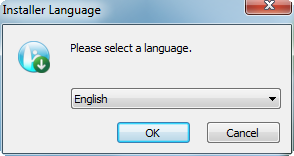
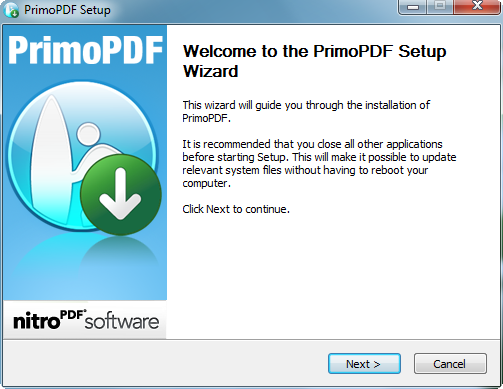
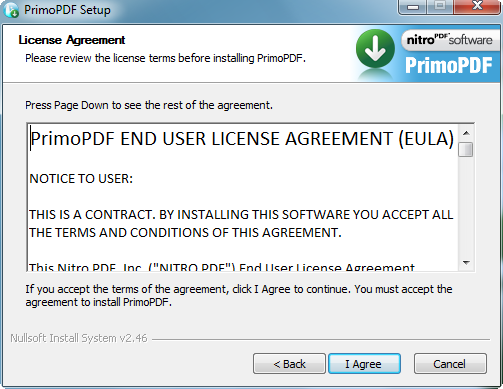
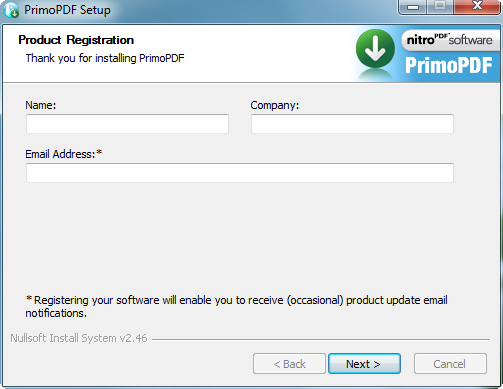
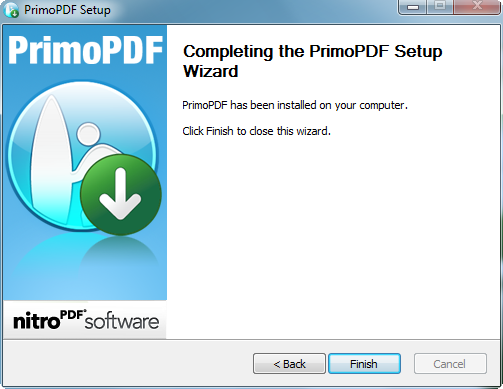
Once you download the software, run the EXE file and you will find the below screen one after the other. The installation procedure is self-explanatory:

Step1

Step 2

Step 3

Step 4

Step 5

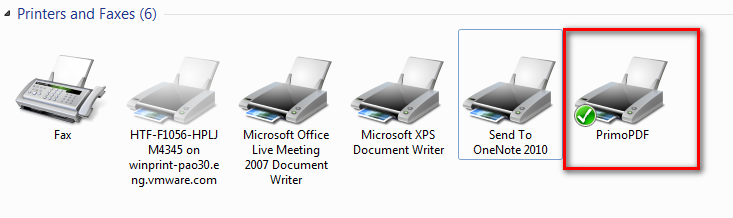
Once the installation is completed, then go to you Printers section in your computer, where you can find a "PrimoPDF" as your default printer.

Default Printer
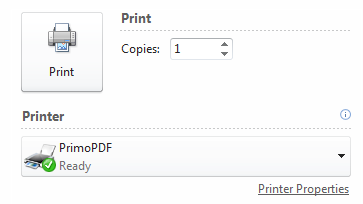
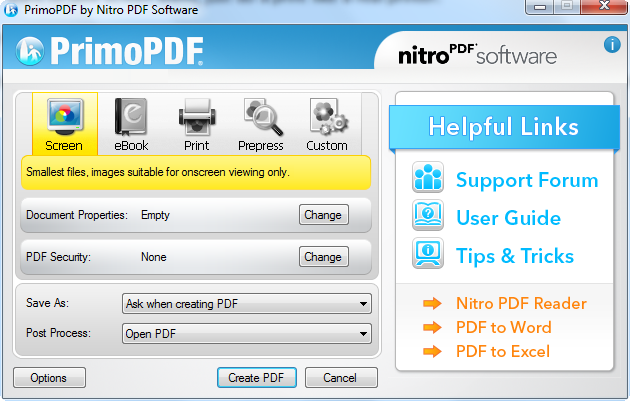
 In case if you want to print any document offline if you real printer is not available, then select "PrimoPDF", then it will print the document and save it in PDF format for you in the specified path. So that you can refer that PDF at a later point of time to take printout.

Print Options

Save the print document as PDF

Screen Capture Utility


FastStone Capture is a more powerful tool and interactive Screen capture utility. Newer versions of FastStone has been made premium but version 5.3 is a free version and can be used by any single user.

Various features of FastStone Capture are:
  • Capture Active Window
  • Capture Window/Object
  • Capture Rectangular area
  • Capture Full Screen
  • Capture Scrolling screen
  • Capture Freehand region
  • Edit the Captured image
  • Text annotation in the captured image
  • Highlight the specified area in the captured image
  • Cropping
  • Re-sizing
  • Screen Magnifier
  • Printing
  • Emailing


Below is the snapshot of the FastStone Capture, if you need, kindly download here
In the download page, Click on File -> Download
FastStone 5.3